Clipture for Mac
Take Mac screenshots without opening WeChat or DingTalk
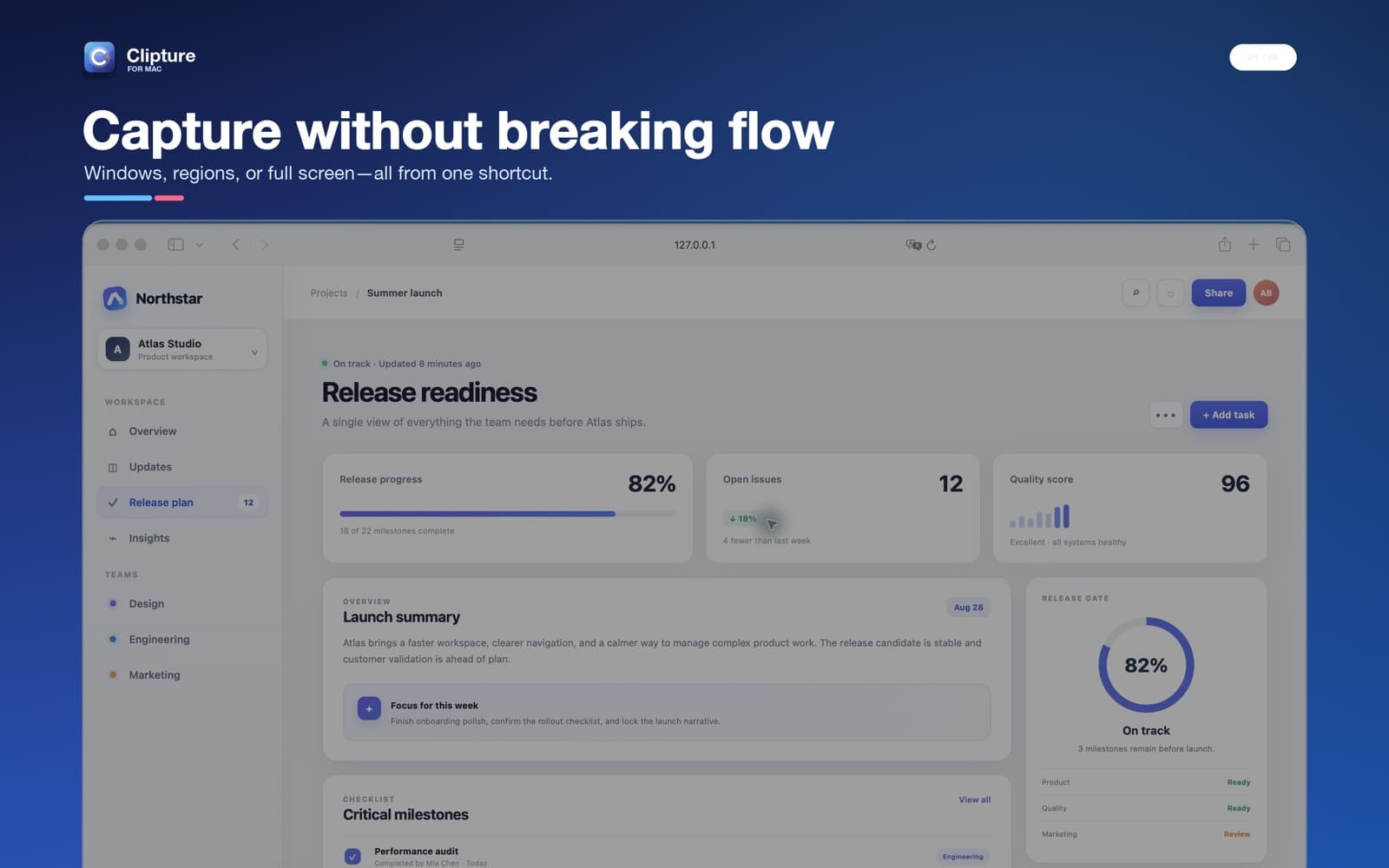
A screenshot tool that is always available
Messaging apps include convenient screenshot tools, but using them can require launching the app and signing in first. Clipture can start at login and remain in the macOS menu bar, so the capture shortcut works independently of a chat account.
Press Control-Command-A, click a highlighted window or drag an area, then annotate or copy the result. Press Esc whenever you want to cancel.
Familiar annotation tools
The toolbar includes rectangles, circles, lines, arrows, text, mosaic, and numbered notes. Color choices are presented as a compact preset row rather than requiring a color-value editor for routine screenshots.
Finished screenshots can be copied to a conversation, saved to disk, or pinned temporarily above other windows as a reference.
No messaging account required
Clipture does not require a WeChat, DingTalk, or Clipture account for capture. Screen Recording permission is required by macOS to read selected pixels, while Accessibility is needed only for automatic scrolling and direct clipboard-history paste.
Frequently asked questions
Does Clipture require WeChat or DingTalk to be open?
No. Clipture is an independent macOS menu-bar app and does not require a messaging account.
Can I paste the screenshot into a chat immediately?
Yes. Complete the capture, choose Copy, then paste it into the chat or document you were using.
Can Clipture start automatically?
Yes. Login launch can be enabled in Clipture Settings.